Receive real-time Telegram notifications whenever your store gets a new order. This helps store owners and staff stay updated and process orders promptly without constantly checking the admin dashboard.
Step-by-step guide
Generate a token on store
Log in to your store dashboard. Go to Settings > Notifications.
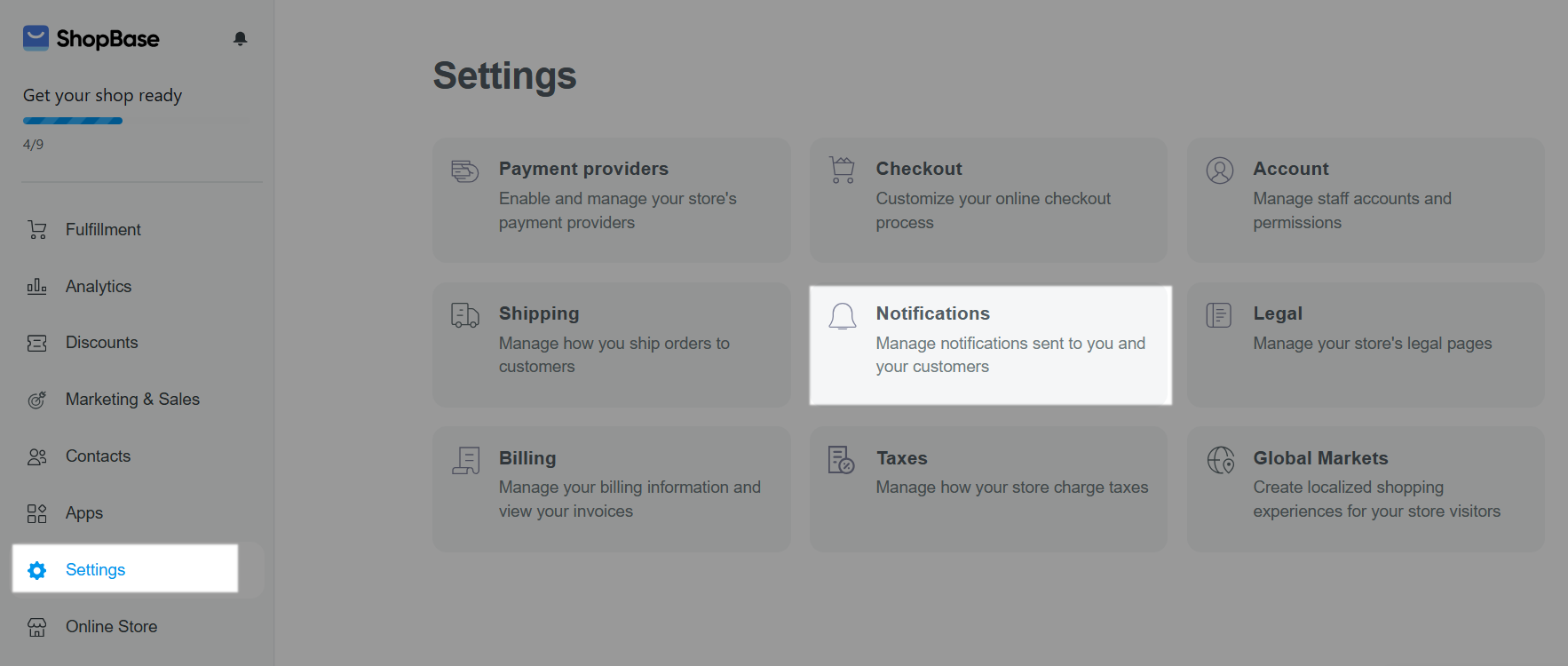
Scroll down to the Notification channels section. Click + Connect new channel.

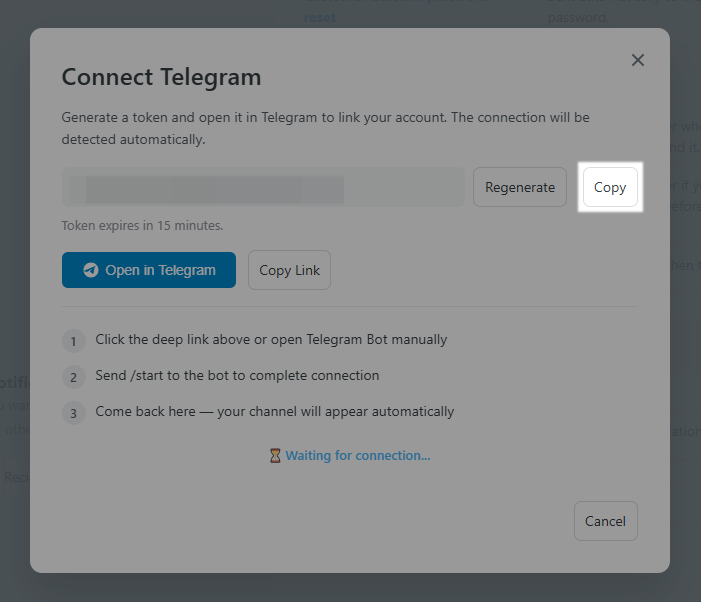
Click Generate to create a token.
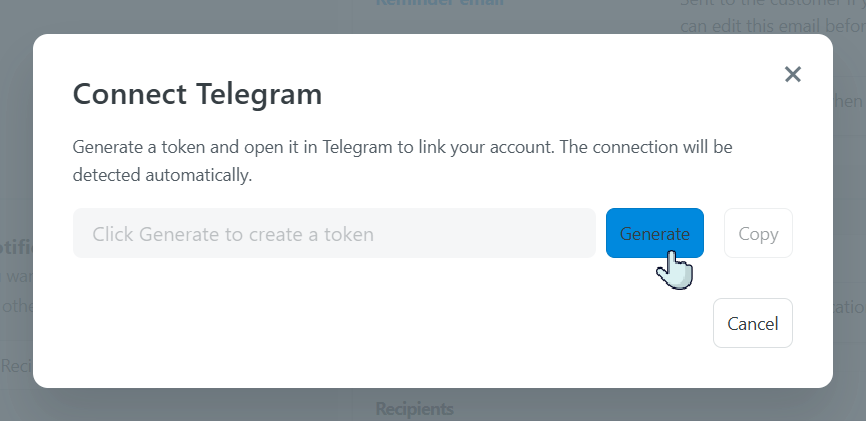
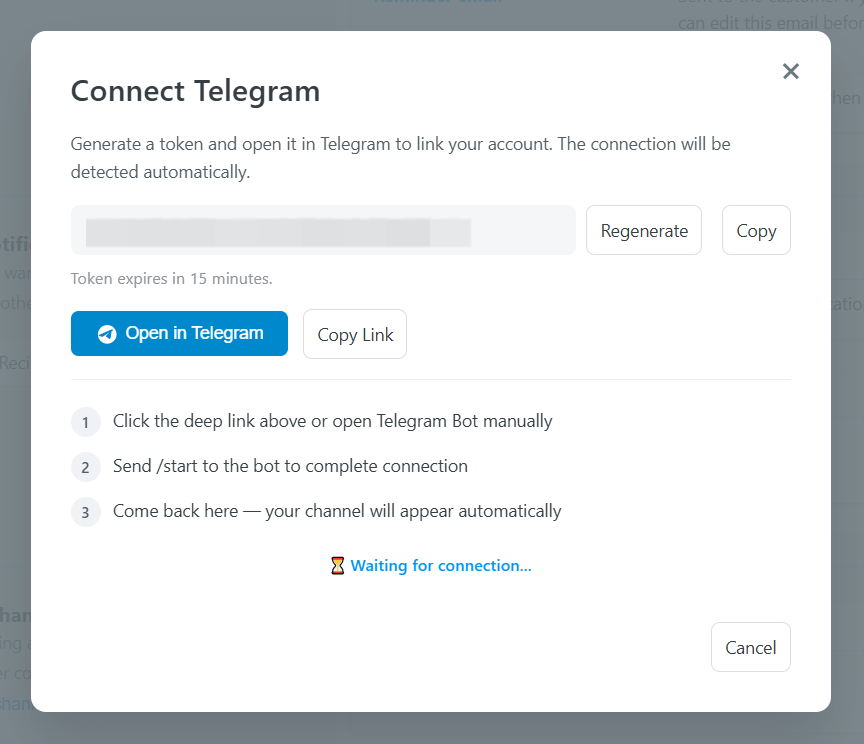
The token is only valid for 15 minutes. If it expires, click Regenerate to create a new one.
Connect Telegram
Choose one of the following methods to connect your Telegram account.
Method 1: Using the Telegram desktop app
In the Connect Telegram popup, click Open in Telegram.
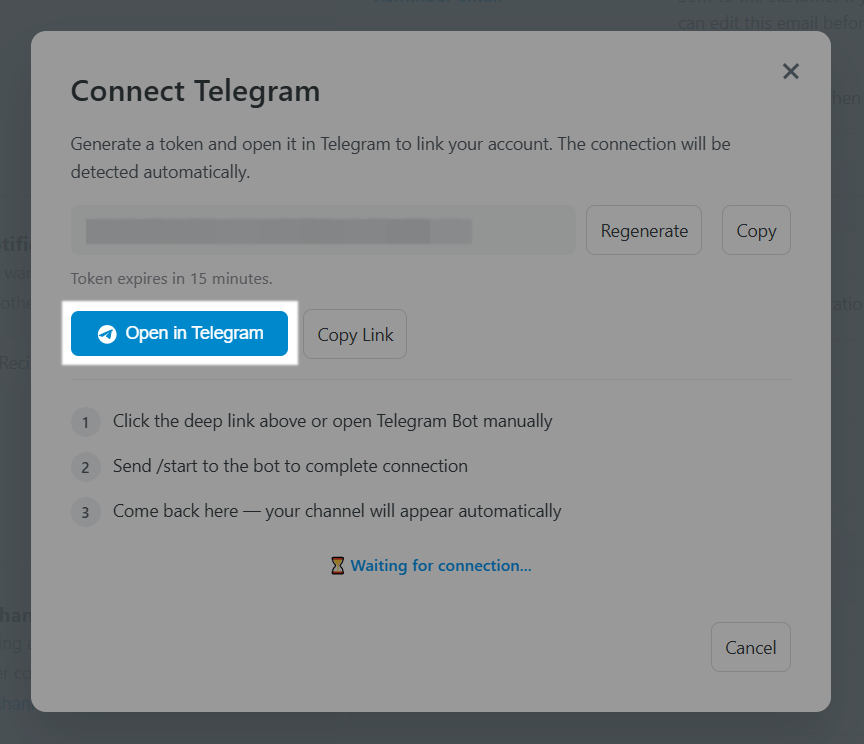
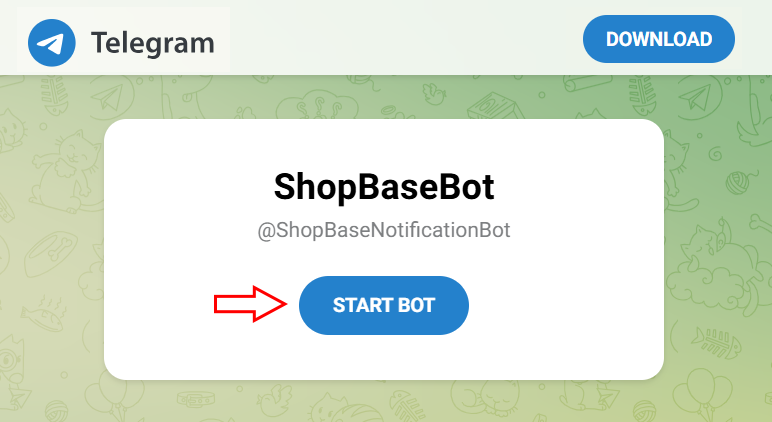
A new browser tab will open. Click START BOT.
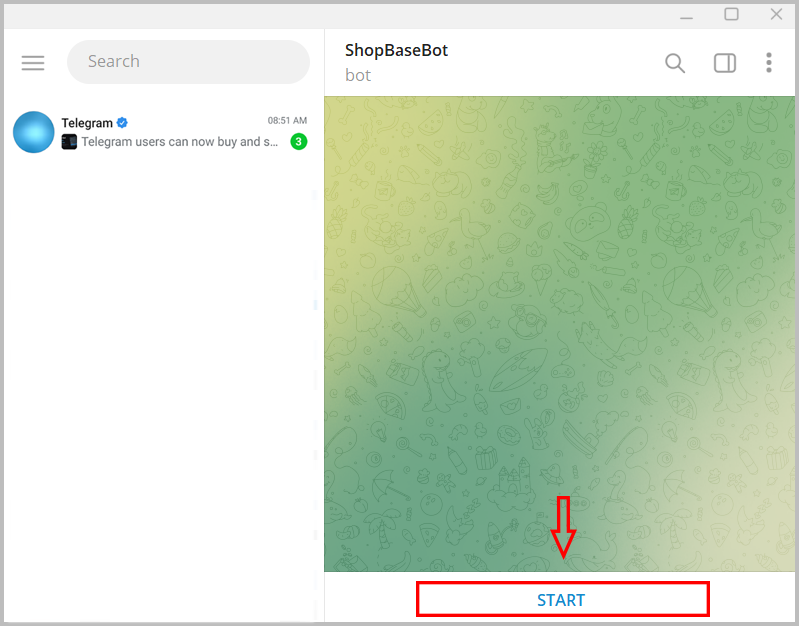
Your device will automatically open the Telegram app and start a chat with @ShopBaseNotificationBot. Click START to complete the connection.
Method 2: Using Telegram Web
Recommended if you are already logged in to Telegram on your browser. This method is only supported on some browsers, including Chrome, Microsoft Edge.
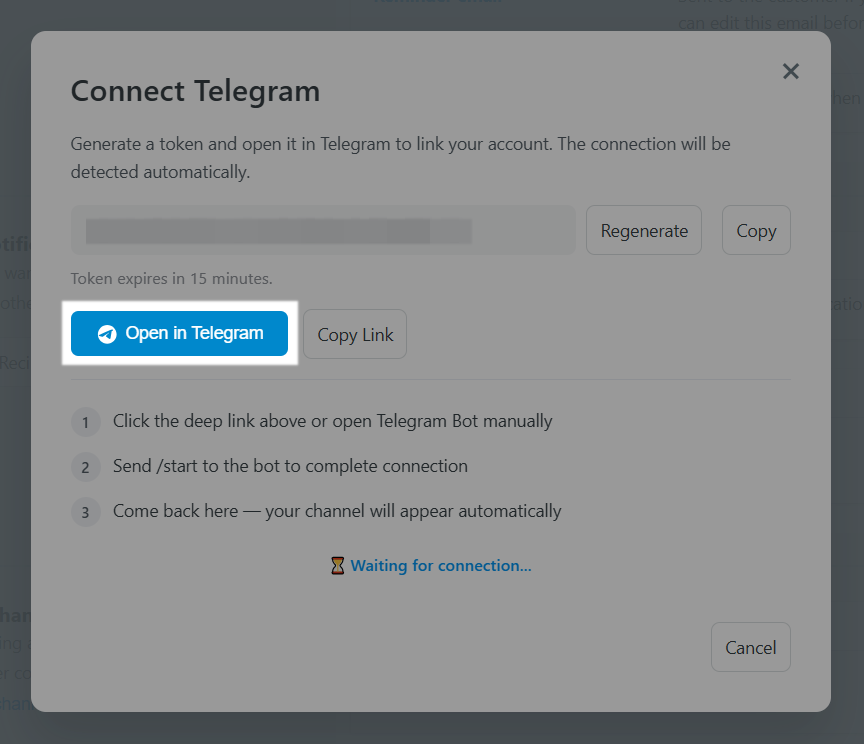
In the Connect Telegram popup, click Open in Telegram.
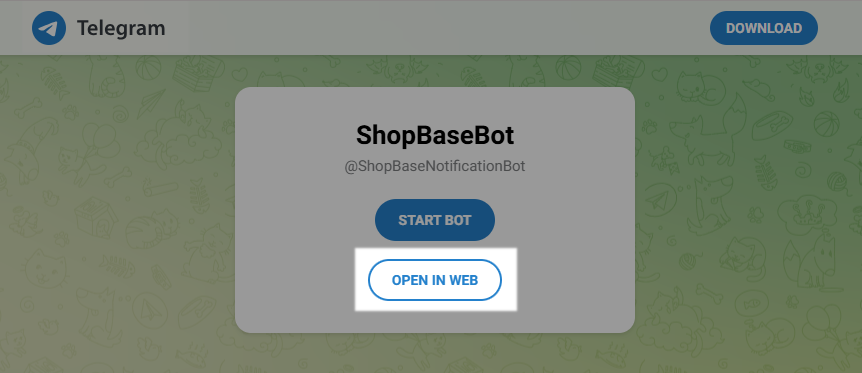
A new browser tab will open. Click OPEN IN WEB.
Telegram Web will open and automatically complete the connection.
Method 3: Manual setup
In the Connect Telegram popup, click Copy to copy the token.
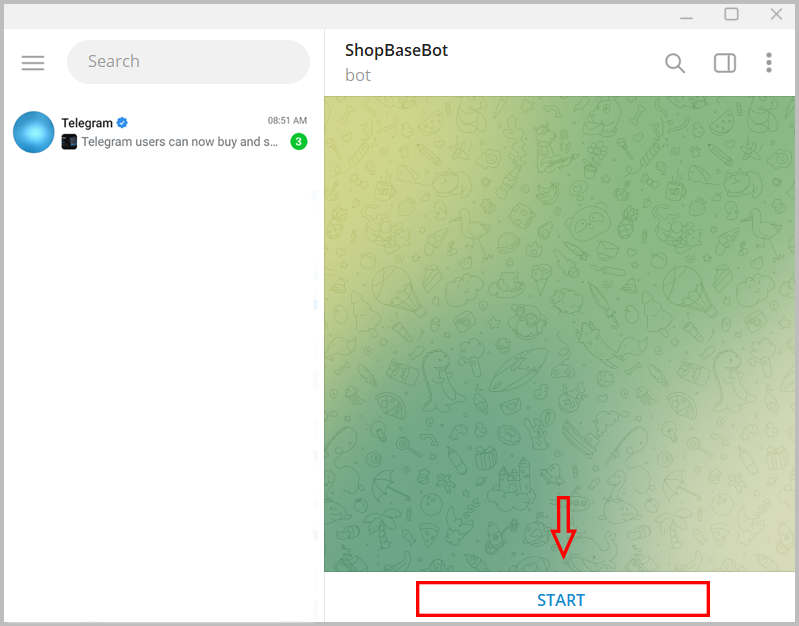
Open the Telegram app. Search for @ShopBaseNotificationBot. Click Start.
Send the following command: /start {your_token}. The bot will activate successfully after the command is sent.
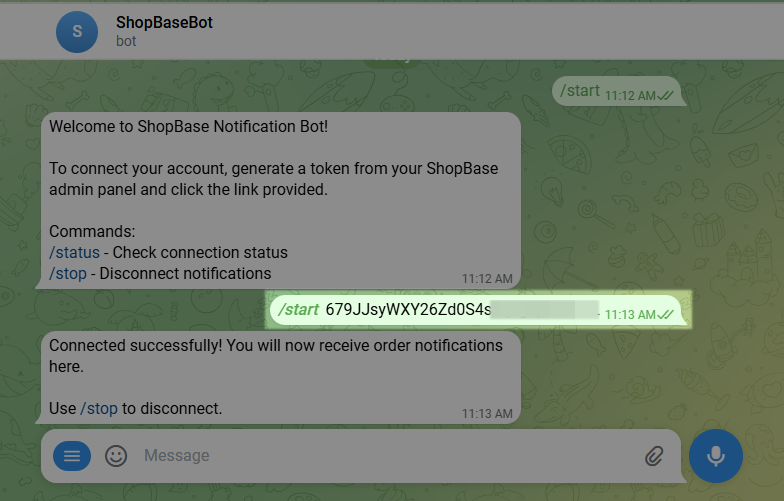
Verify the connection
After the Telegram bot is connected successfully:
The popup on your store dashboard will close automatically.
Your Telegram account will appear in the Connected channels section with the status • Active.

Notification format
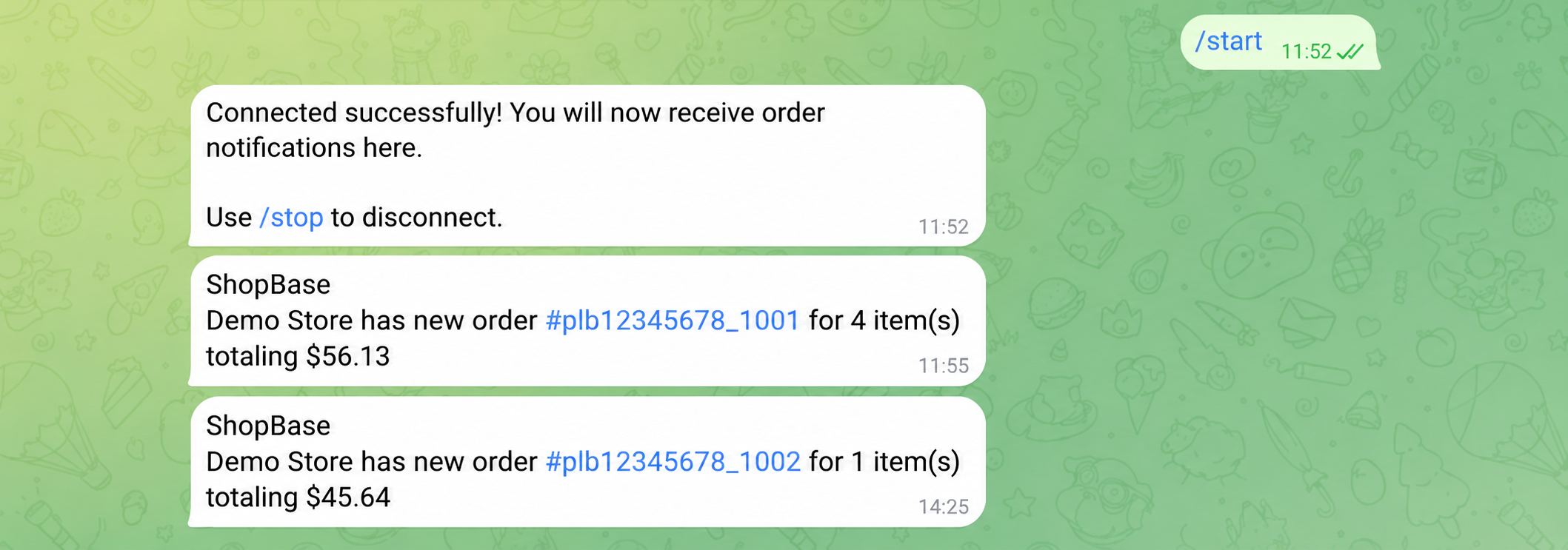
When your store receives a new order, the bot will send a message in the following format:
{Platform} [Store Name] has new order #[Order name] for {total quantity} item(s) totaling {order amount}
Disconnect Telegram notifications
In the Connected channels section, click the Disconnect button next to the Telegram account you want to remove.

Click Disconnect again in the confirmation popup.
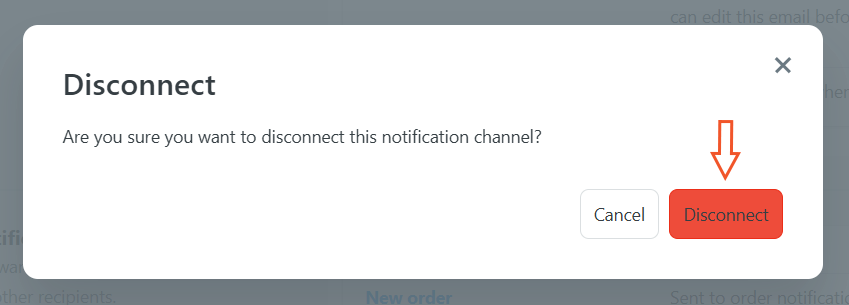
After disconnecting, Telegram notifications for that store will stop immediately.
Staff accounts that want to receive Telegram order notifications must be granted access to the store’s Orders page. Please refer to this article for instructions on adding and assigning permissions to staff accounts in your store.