AppLovin Pixel helps track product views, add-to-cart actions, and purchases on your ShopBase store. You only need to enter the Event Key in ShopBase—no code installation is required.
Before you start
Make sure that:
Your website is publicly accessible and has products, images, prices, and a checkout page with an active payment gateway.
Your contact information, shipping, return/refund, and privacy policies are complete and accurate. AppLovin may review your website according to its advertising policies.
Make sure you remove all AppLovin-related additional scripts and disconnect any other AppLovin integrations or connection methods previously set up on your store to avoid duplicate events.
Get the event key
Go to AppLovin Ads and sign up or log in. Complete any required verification steps.
Go to Account > Keys. Depending on the interface, this may appear under Account > General > Keys.
Copy the AppLovin Event Key (Axon Event Key) for your website Pixel.
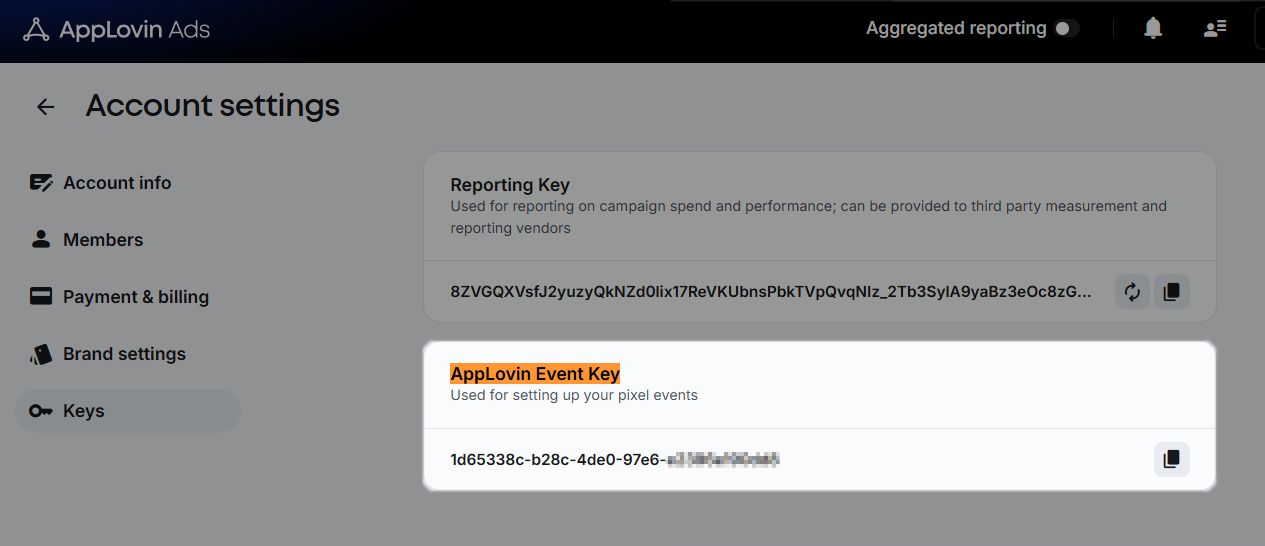
If you cannot find the key or see Access denied, make sure you are using the correct AppLovin account. If the issue persists, contact AppLovin Support.
Connect AppLovin pixel to your store
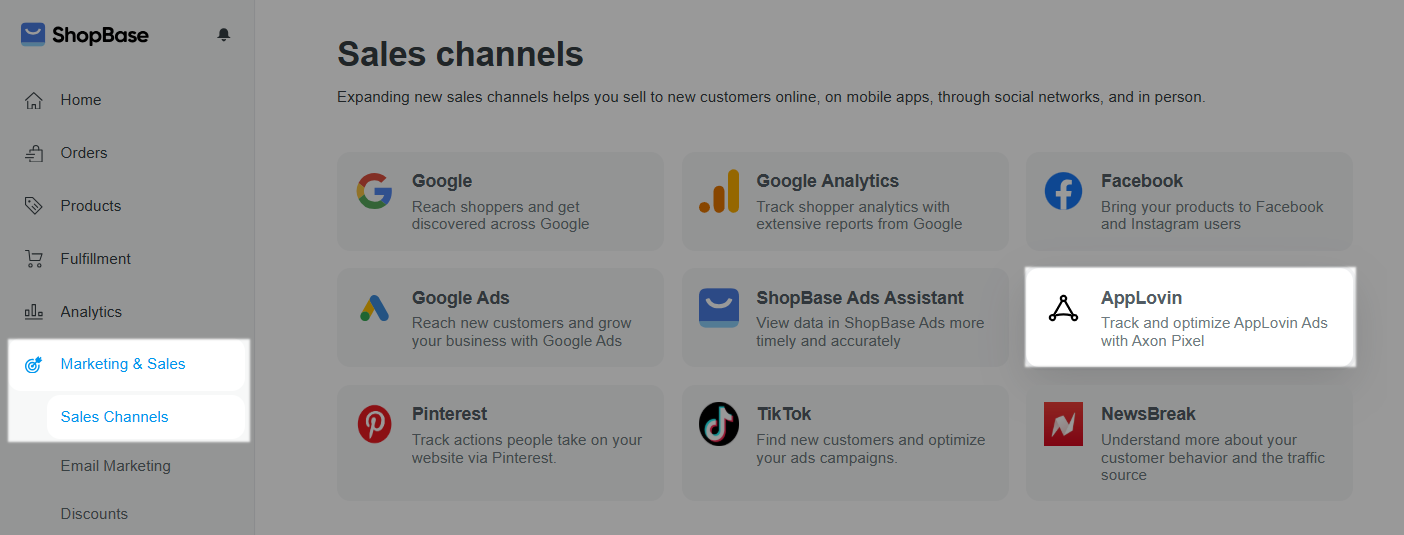
From your ShopBase admin, go to Marketing & Sales > Sales Channels > AppLovin.
Enter the key in the Axon Event Key field under Axon Pixel.
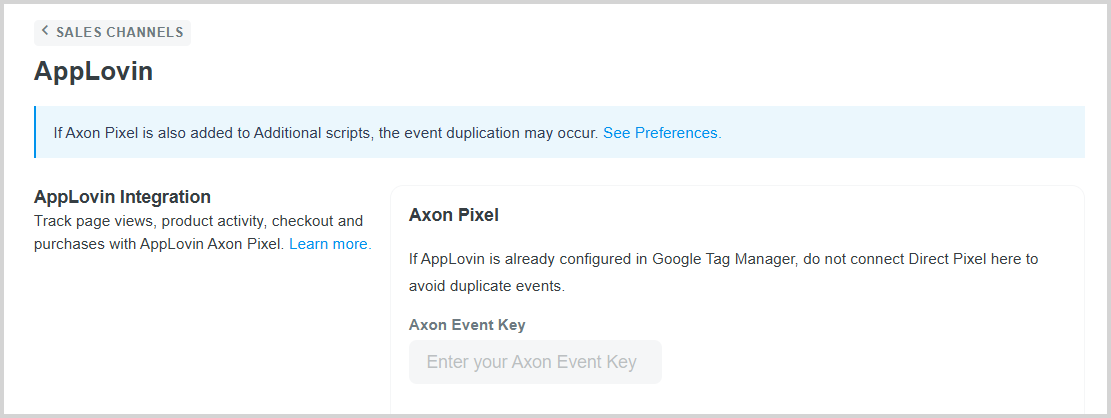
Click Save changes.
Check events with Pixel Helper
Install AppLovin Pixel Helper for Chrome.
Open your store in Chrome. If a cookie banner appears, select Accept All for the test session. If you use an ad blocker, turn it off or allow tracking for your store during the test.
Perform actions such as viewing the homepage, viewing a product, adding to cart, going to checkout, and completing a purchase, then check the corresponding events in Pixel Helper.
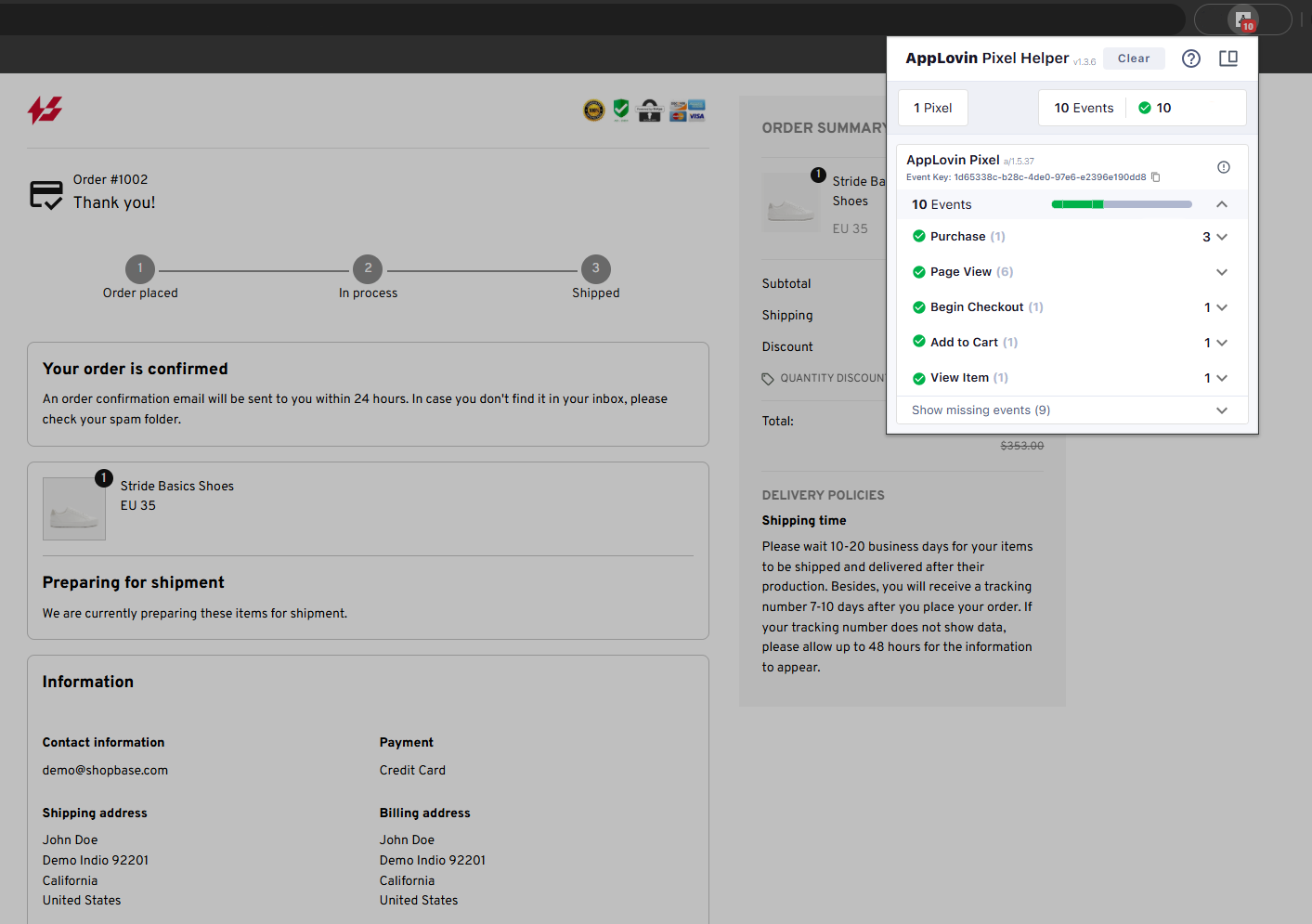
Open each event to verify the product, quantity, price, and currency parameters. For the Purchase event, also check the transaction ID, shipping fee, and tax. The value represents the product subtotal, while shipping and tax are sent separately.
Verify events in AppLovin
Open the AppLovin dashboard and make sure the domain matches the store you just tested.
Click Verify/Refresh after performing the test actions on your store.
Wait a few minutes if the events have not appeared yet.
Check the events in the Events section to confirm that AppLovin has received them.
Click Complete setup when available.
AppLovin pixel events
ShopBase sends the following events through AppLovin Pixel:
Page View: triggered when a visitor views homepage.
View Item: triggered when a visitor views a product page.
Add to Cart: triggered when a visitor adds a product to the shopping cart.
Begin Checkout: triggered when a visitor goes to the checkout page.
Purchase: triggered when a customer completes a purchase and views the Thank You page.
Troubleshooting
If an event is missing, a parameter is invalid, or the Pixel setup cannot be completed, refer to the table below for the recommended solution.
Issue |
Solution |
No pixels detected |
Make sure the correct Event Key is saved in your store. Also check that you are testing the correct store, have accepted the cookie consent, and have allowed tracking in your ad blocker. |
Missing event |
Perform the corresponding action again and check Pixel Helper to see if the event is triggered. |
Required / NULL shown in red |
Open the event details and check the missing parameter. Take a screenshot and contact ShopBase Support if the issue persists. |
Recommended shown in orange or an axwrt warning |
Take a screenshot of the warning and contact ShopBase Support. Do not enter arbitrary data to remove the warning. |
Pixel setup incomplete |
Go back to the Pixel setup page and complete the required steps. If you cannot complete the setup, contact AppLovin Support. |
Suspended / Under review |
Follow the instructions provided by AppLovin or submit an AppLovin appeal. |
When contacting support, provide your store domain, test time, the action that caused the issue, and a screenshot showing the event details in Pixel Helper. Hide customer information and never share your password or Reporting Key.